 Damon Salvatore AI
Damon Salvatore AI Video Generator
Create a Damon-inspired vampire edit from one photo. See the format preview, photo tips and one-time pack prices before you sign in.
Upload one photo
Front-facing, eyes visible, no sunglasses. Keep your face clearly lit.
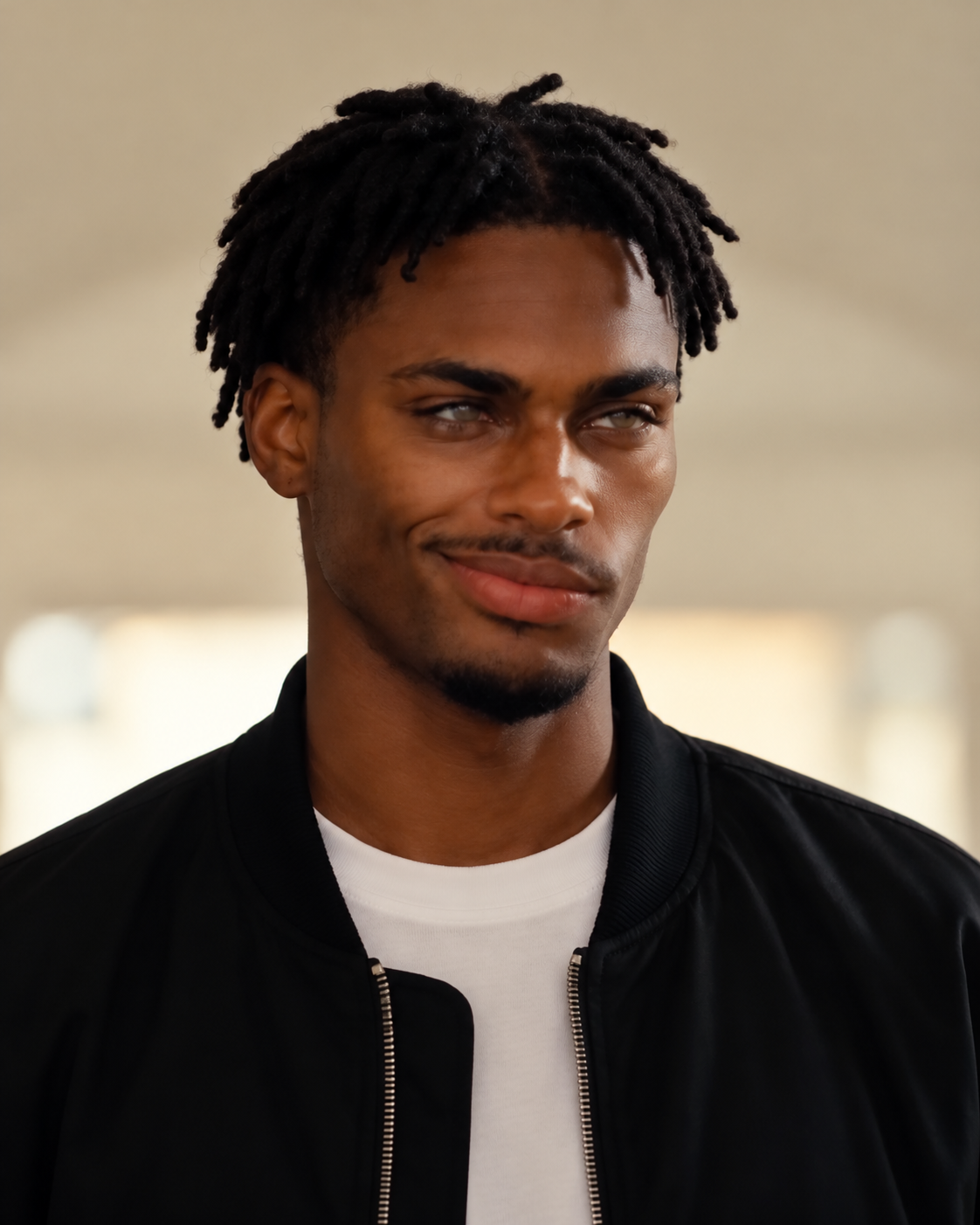
One person · Eyes visible · Soft, even light on the face
Illustrative photo comparison; it does not show tested generation results.
JPG, PNG or WebP, up to 10MB.
Square format preview · Generated videos are 10 seconds in 9:16 with audio and no watermark.
Video format
MP4, ready to download from My videos.
Upload your photo first — you only pay when you generate.
Four moments from the preview
Square format preview · Generated videos are 10 seconds in 9:16 with audio and no watermark.
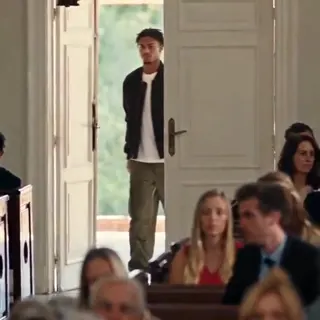 010:00–0:03 — Someone enters through the doorway, followed by cuts to seated people looking back.
 020:03–0:04 — A hand dips into the water in a stone basin.
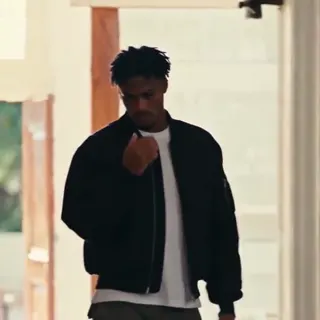 030:04–0:09 — The figure walks forward and makes the sign-of-the-cross gesture, touching face and chest.
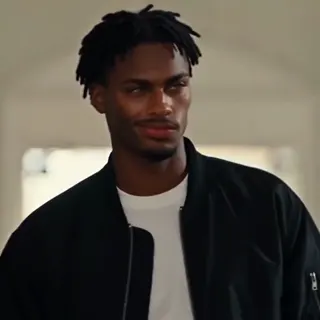 040:09–0:10 — The clip ends on a closer view of a face turning to the side with a slight smile.
What is the Damon Salvatore AI trend?
This photo-to-video format uses a cinematic vampire mood inspired by Damon Salvatore, such as a slow smile and a dramatic entrance. The video shown here is a square format preview; your own result may differ.
You don't film anything. You upload one photo, and the video is generated for you — no shooting, no timeline, no editing pass.
Format preview →Damon Salvatore church scene →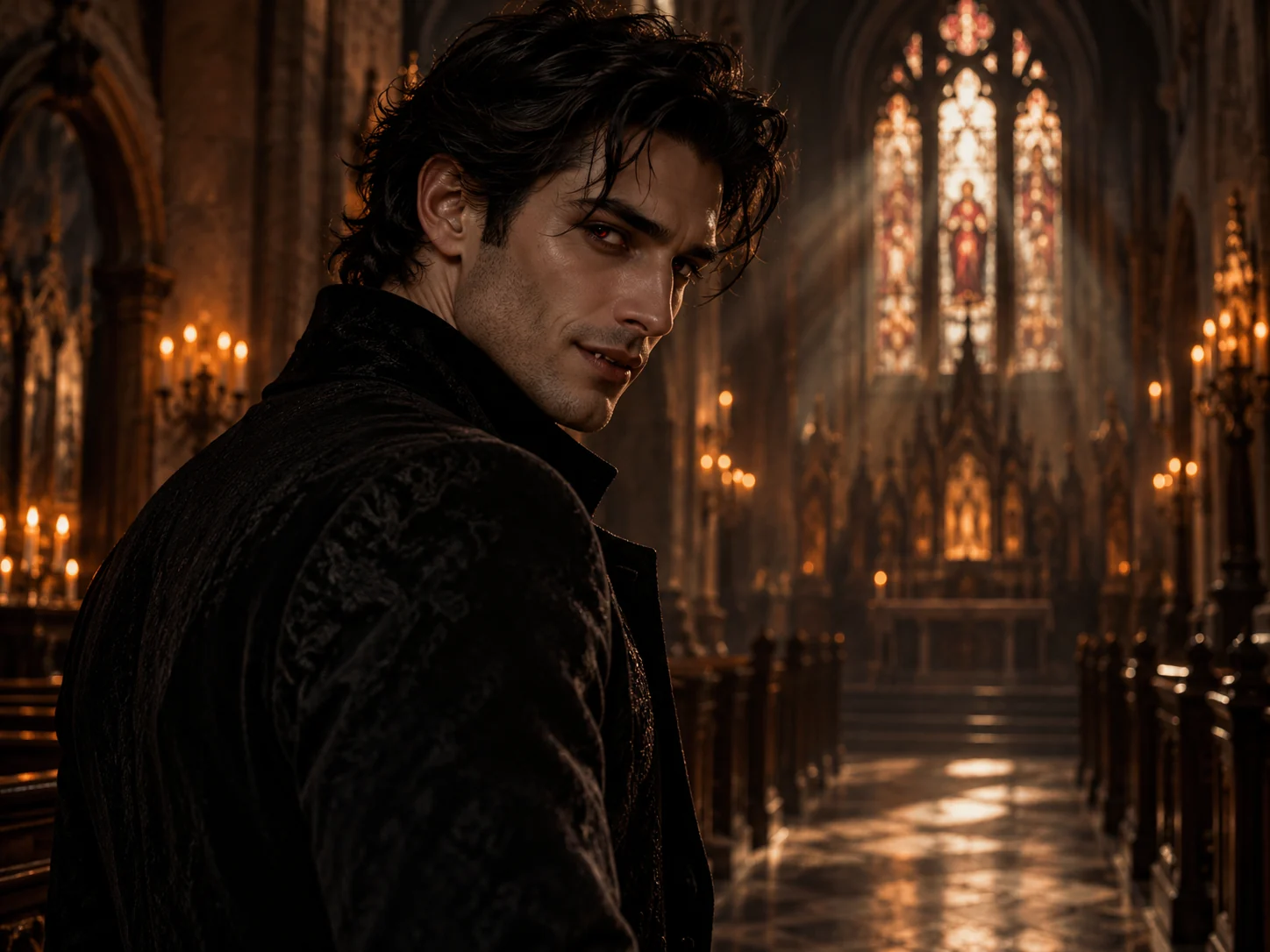
How to make the Damon Salvatore AI video
Upload one photo
Front-facing, eyes visible, no sunglasses.
Pay for a pack
From $6.99, one time, no subscription.
Download and post
Your finished MP4 is ready for TikTok, Reels or Shorts.
What you give, what you get
One photo
- A single clear front-facing photo of one person
- JPG, PNG or WebP, up to 10MB
- Eyes visible, face comfortably filling the frame
One finished clip
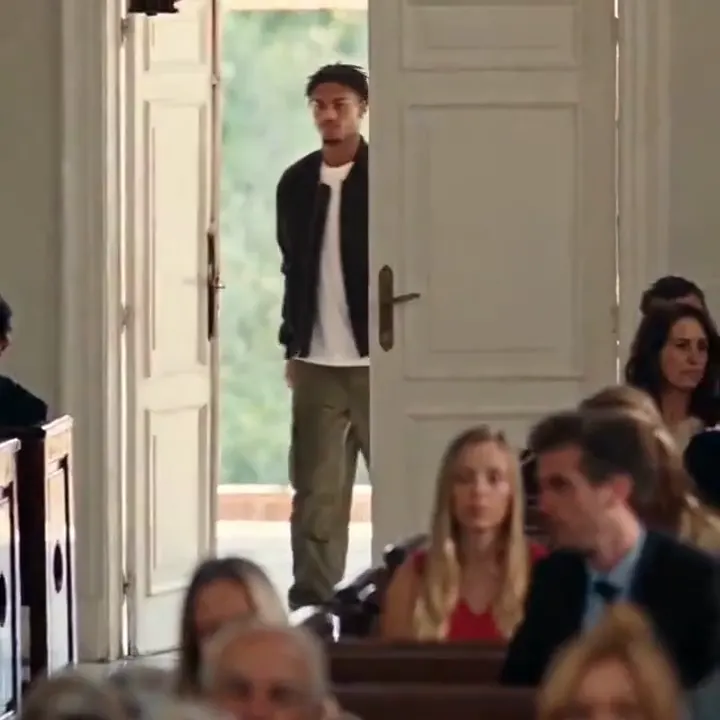 Format preview
- 10-second video in 9:16 portrait format
- 480p resolution
- Audio included
- No watermark
- Download from My videos when complete
Which photo works best for the Damon Salvatore AI edit
Choose a clear photo with one face large enough to see, visible eyes and even light. The examples beside the upload box show how blur, darkness or a small face can hide useful detail.
Works best
- 01One person alone in the frame
- 02Front-facing, eyes visible, no sunglasses
- 03Soft, even light on the face
- 04Mouth closed or only slightly open if you want the smirk to land
- 05A plain wall behind you
Avoid
- 01Group photos
- 02Side profiles or faces turned away
- 03Blurry shots, and shots where the face is very dark
- 04Face small in the frame
- 05Bright colours, big logos, heavy jewellery
What goes wrong, and how to fix it
Most avoidable problems begin with the input photo. Check the image before you spend credits: one person, a visible face, even light and enough resolution to see the eyes. A dramatic dark portrait may look good as a still but leave too little detail for a moving face.
The face looks soft or changes too much
Try a sharper photo where the face fills more of the frame. Remove heavy filters, sunglasses and anything covering the eyes or mouth. A side profile gives the model less information than a front-facing portrait. If several people appear, crop to one person before uploading. These steps improve the input; they do not guarantee an identical face in every frame.
The mood is too dark to read
Keep the vampire styling in the clothes or background, but light the face softly from the front. Avoid strong backlight, crushed shadows and a nearly black face. A plain wall also makes the person easier to distinguish from the setting. Do not use an underexposed image just because the final scene is supposed to feel moody.
The upload or generation does not complete
Use one JPG, PNG or WebP image no larger than 10 MB, and confirm you have permission to use the photo. If the image safety check rejects it, choose another suitable image. If that check is unavailable, try again later; generation will not start and no credits are deducted. Follow an accepted task in My videos rather than repeatedly starting new ones.
A completed video can differ from the format preview even when the photo follows every tip. If generation itself fails, deducted credits are returned to your balance. If a completed result has a problem, contact support with the task details so it can be reviewed; a finished render still uses credits.
How to post it on TikTok and Instagram
Once the task is complete, open My videos and download the MP4. The generated file is a ten-second, 9:16 portrait clip with audio and no watermark. Watch the downloaded file first, especially the opening and final expression, so your caption describes what your version actually shows.
Post to TikTok
In TikTok, start a new post, choose Upload and select the downloaded MP4. Check the crop and preview before publishing; the portrait file should fit a vertical post, but the app may show interface elements over its edges. If you want a specific trend sound, choose it from TikTok's sound library and decide whether to keep, lower or replace the clip's original audio. Add a short caption that explains the photo-to-video transformation, then choose your audience and post.
Post as an Instagram Reel
In Instagram, create a Reel and import the same MP4 from your device. Preview the full ten seconds, choose a cover frame where the face is readable, and check that any text sits away from the top and bottom interface areas. Instagram may offer music, text and trimming controls; use only what helps the clip. Before sharing, review the caption, audience and any account-specific sharing options shown in the app.
You can post the file as it is or edit it in another app first; no CapCut template is required to generate it here. Use audio you have the right to share, and avoid claiming that the format preview is your own result. Platform controls can change, so use the current labels in TikTok or Instagram if they differ from these steps.
Pricing — $6.99 per video, no subscription
One-time purchase. Nothing auto-renews. No free trial, and we say that up front.
1 video
One-time purchase
$6.99
$6.99 per video
One-time purchase
1 video
Fixed quality: Standard 480p
50 credits per generation
50 credits
2 videos
Save $3.99
$9.99
$5.00 per video
One-time purchase
2 videos
Fixed quality: Standard 480p
50 credits per generation
100 credits
4 videos
Save $10.97
$16.99
$4.25 per video
One-time purchase
4 videos
Fixed quality: Standard 480p
50 credits per generation
200 credits
6 videos
Save $16.95
$24.99
$4.17 per video
One-time purchase
6 videos
Fixed quality: Standard 480p
50 credits per generation
300 credits
The bigger the pack, the less each video costs.
Every failed render returns its credits. No subscription, no auto-renewal.
FAQ
Is this an official The Vampire Diaries product?
No. This is an independent tool and is not affiliated with or endorsed by The Vampire Diaries, The CW, Warner Bros. or Alloy Entertainment. Damon Salvatore belongs to its rights holders. Upload only your own photo or one you have permission to use.
What is the Damon Salvatore AI trend?
A photo-to-video format inspired by Damon Salvatore: a vampire mood, a slow smile and a cinematic entrance. Upload a photo to create your own variation. Results can differ from the format preview.
How do I make the Damon Salvatore AI video?
Upload one clear, front-facing photo of yourself, choose a one-time pack and start a generation. Follow its status in My videos, then download the completed 10-second video.
Which photo works best?
Choose a clear photo of one person facing the camera, with visible eyes and even light on the face. Avoid group photos, side profiles, blur and a face that is too small or dark in the frame.
How to do the Damon Salvatore smirk?
Choose a photo with your face clearly visible and your mouth closed or slightly open. The expression in a generated video can vary.
How to look like Damon Salvatore?
A clear, well-lit face and a simple background make a useful starting photo. Dark clothing can suggest the mood; the final appearance depends on the generation result.
How to create the AI trend on TikTok?
Download your completed video from My videos and upload it to TikTok. If you want a particular trend sound, select it in TikTok’s sound library when posting.
Is there a free AI video generator for this?
We do not offer a free generation trial. The one-video pack is $6.99, purchased once with no automatic renewal. You can view the format preview and photo tips before signing in; a failed generation returns its credits.
Do I need CapCut or a Damon Salvatore edit template?
No template is required here. Upload a photo and start a generation from this page. You can edit the downloaded video in another app if you wish.
How long is the video, and what ratio is it?
Generated videos are 10 seconds long in a 9:16 portrait format at 480p, with audio and no watermark. The square video shown on this page is a format preview.
How much does it cost?
Current one-time packs are $6.99 for one video, $9.99 for two, $16.99 for four and $24.99 for six. Check the pricing page before purchase for the current prices and credit amounts.
What if my video fails?
If a generation fails, its deducted credits are returned to your balance. A completed video still uses credits. If you have a problem with a completed result, contact support and include the task details.